


Dayforce is a unified HCM platform that helps organizations manage HR, payroll, workforce management, and more in one place. Keeping employee information up to date is an important part of maintaining accurate HR records and supporting day-to-day workforce processes.
In this guide, we’ll walk through how to update a work assignment in Dayforce, step by step, so you can make changes accurately and efficiently when an employee’s role, department, location, or other assignment details change.
Before you begin: Make sure you have the appropriate Work Assignments permissions and access to the employee you’re updating. If your organization uses Position Management, the fields and job/location options available to you may depend on the employee’s position configuration. Also confirm the effective date and whether you’re updating a primary or secondary work assignment. (Read more about these prerequisites in the FAQ below.)
1. Search for the employee and open their profile.
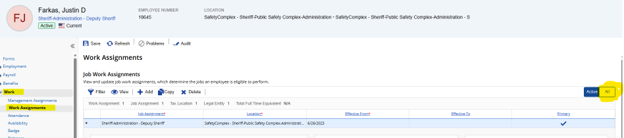
2. Click on “Work” then “Work Assignments” on the left of the screen, and then “All” on the right.
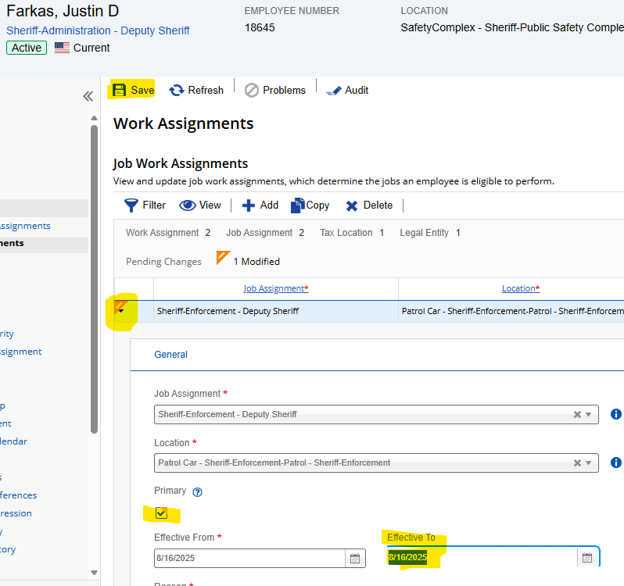
3. Click on down arrow on the line with the correct job title, click “Primary”, then remove the “Effective To” date, and click “Save”.
Keeping work assignments up to date helps maintain accurate employee records and smoother HR processes. If you need support with Dayforce implementation, optimization, or ongoing improvements, OnActuate’s team of Dayforce experts can help.
Frequently Asked Questions
Do I need special permissions to update a work assignment in Dayforce?
Yes. Your access depends on your organization’s Dayforce security configuration. The Work Assignments feature has separate permissions for viewing, creating, updating, and deleting primary and secondary work assignments. If you don’t see the option to make a change, you may need additional access from your Dayforce administrator.
Why can’t I find the employee or location I need?
Your employee and location access may be restricted based on your role and organizational access. In some configurations, the locations available when updating a work assignment are limited to those you’re authorized to access.
Why are some work assignment fields unavailable or read-only?
If your organization uses Position Management, some work assignment details may be controlled by the employee’s position. Available job and location combinations can also be determined by the position configuration. Changes to the underlying position may need to be made through Organization Designer rather than the employee’s work assignment.
What should I know about effective dates?
Pay close attention to the Effective From date when making a change. This determines when the new assignment takes effect. If you’re replacing a primary work assignment, the previous assignment may also need to be end-dated, since an employee can have only one effective primary work assignment at a time.
What’s the difference between a primary and secondary work assignment?
A primary work assignment represents the employee’s main job assignment, while secondary assignments can be used when an employee works in additional jobs or locations. Access to primary and secondary assignments can be controlled separately, so you may have permission to manage one but not the other.
Still having trouble updating a work assignment?
If the options or fields you need aren’t available, check with your Dayforce administrator to confirm your security permissions and configuration. You can also refer to Dayforce’s Work Assignments documentation for additional guidance. If you need hands-on support, OnActuate’s Dayforce experts can help with implementation, optimization, and ongoing improvements.
About the expert
 |
Hunar Singh, HCM Consultant, OnActuate
Hunar is an implementation specialist at OnActuate and is experienced in delivering Dayforce solutions for clients. She specialises in hands-on system implementation, helping organizations successfully deploy and optimize the Dayforce platform. |
The “OneByte” blog series are technical how-to articles by OnActuate’s expert consultants covering software solutions that enhance operational efficiency, such as Dayforce and Microsoft Business Applications (Microsoft Dynamics, Power Platform). Have a topic you would like to learn more about? Email us at info@onactuate.com!
You may also be interested in
 |
|
 |
| How to Request TAFW and Approve Requests in Dayforce | How to Approve Workflows in Dayforce as a Client Admin | Manager Burnout Isn’t the Problem – Your Workforce Operations Might Be |