


If you haven’t already, click here for part 1 – a step-by-step guide on how to set up the Sales Order Agent in Dynamics 365 Business Central.
How to Use the Sales Order Agent
Step 1: Send a request from the customer
- Create a new email that you will send to your shared mailbox email address and add a quote request for an item you offer.
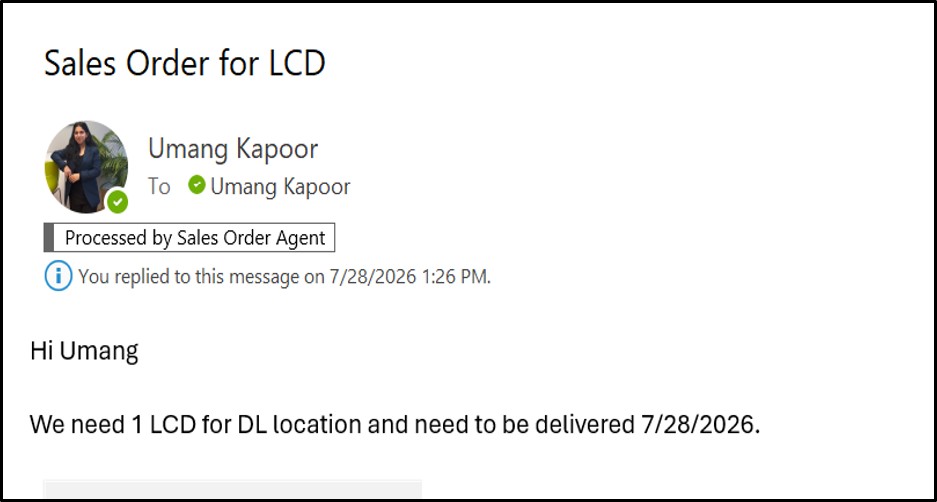
- To review the current task, Click the Sales Order Agent icon to open its task list. Any task requiring your review is listed under Needs Attention.
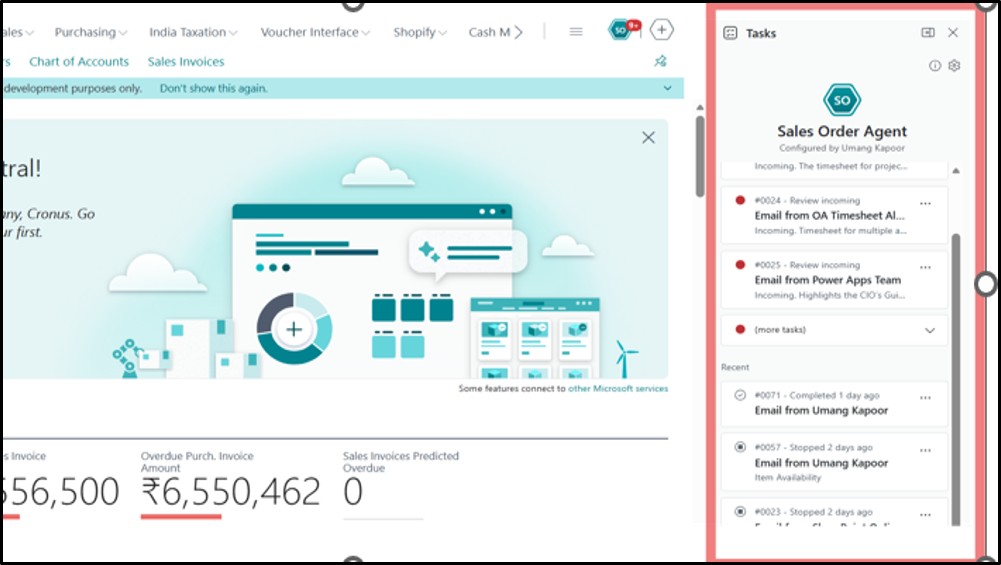
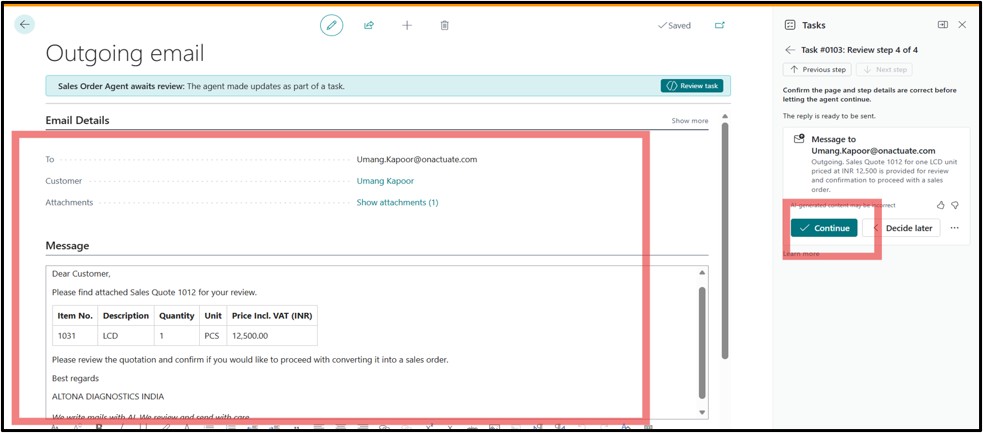
Step 2: Review and confirm rasks
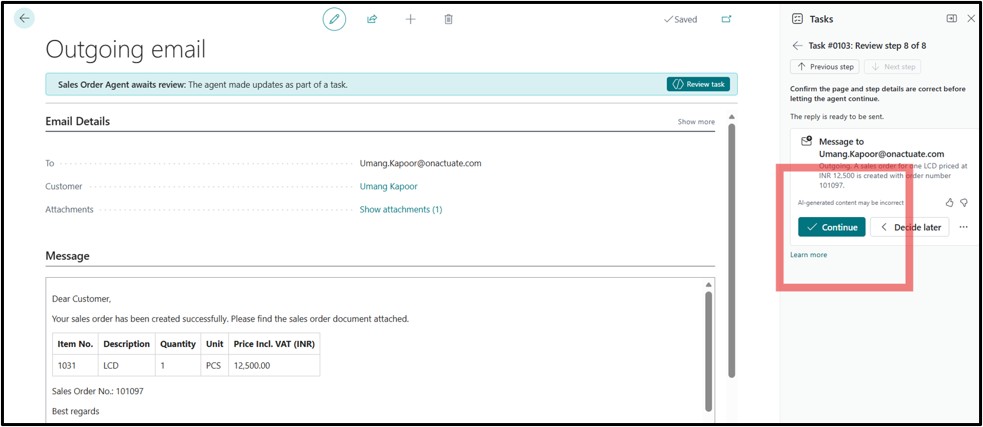
- After the user reviews the task and confirms the requirements, the Sales Order Agent will generate the sales quote and draft the reply email for the user’s review and approval.
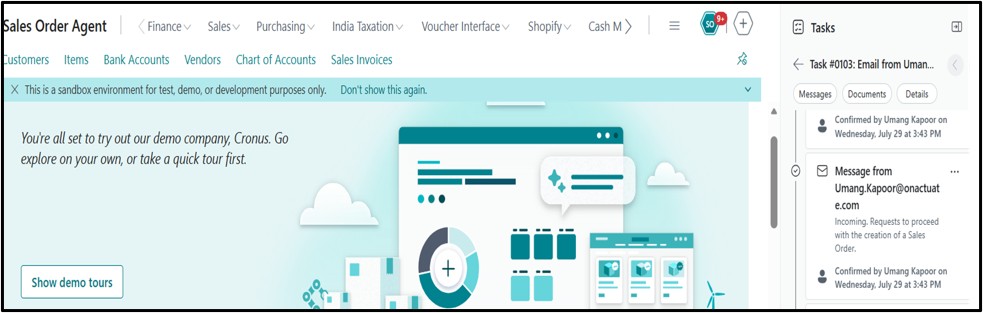
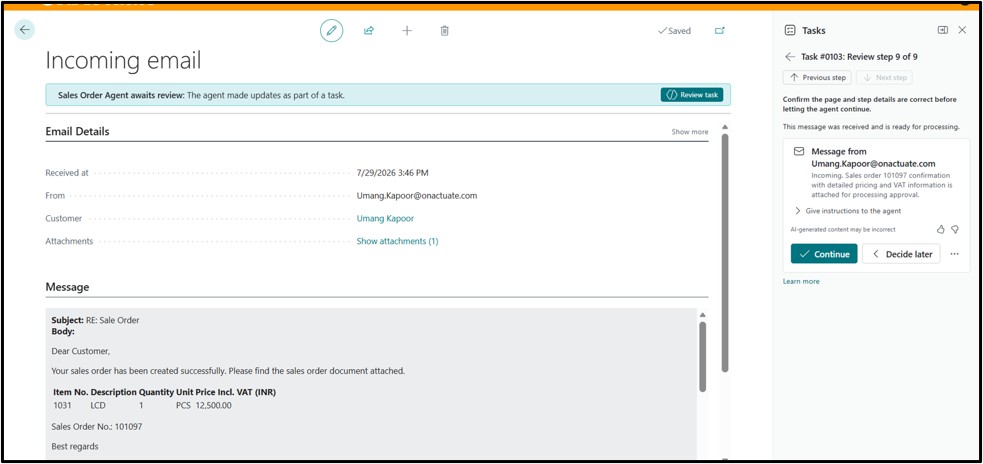
Step 3: Confirmation from customer for conversion of Sales Quote to Sales Order
Step 4: After reviewing and confirmation from the user, the agent will prepare the sales order.
Built for Control, Not Chaos
- It operates as its own user: The agent runs under a dedicated Business Central user profile with role-based permissions, so administrators control precisely which tables and pages it can access-no more, no less.
- Humans stay in the loop: Nothing reaches a customer without review. The agent drafts, humans review.
- It’s auditable by design: Every step the agent takes is logged, so you can trace exactly how a quote/order was generated.
By intelligently transforming customer emails into sales quotes and orders, the Sales Order Agent in Dynamics 365 Business Central enables faster response times, increased productivity, and better customer experience. With AI-driven automation, organizations can streamline their sales operations and focus on delivering greater value to their customers.
If you have any questions on using this agent, please visit Microsoft Learn or contact us.
About the expert
 |
Umang Kapoor, Microsoft Dynamics 365 Business Central Associate Functional Consultant, OnActuate
Umang has many years of experience implementing and supporting Business Central. She specializes in streamlining financials and supply chain, using Business Central to deliver scalable business solutions. |
The “OneByte” blog series are technical how-to articles by OnActuate’s expert consultants covering Microsoft Business Applications (Microsoft Dynamics, Power Platform), Data and AI, and Dayforce. Have a topic you’d like to learn more about? Email us at info@onactuate.com!