


If you’ve ever watched a sales rep manually re-type a customer’s email into a quote – checking stock, prices – you already know the problem. Order intake is one of the most repetitive, error-prone steps in the entire order-to-cash cycle, and it’s been crying out for automation for years.
Microsoft’s answer is the “Sales Order Agent”, the out-of-the-box agent into the Dynamics 365 Business Central. It is one of the most practical AI features – not a chatbot bolted onto the side of your ERP, but an agent that actually does the work.
What Does the Sales Order Agent Actually Do?
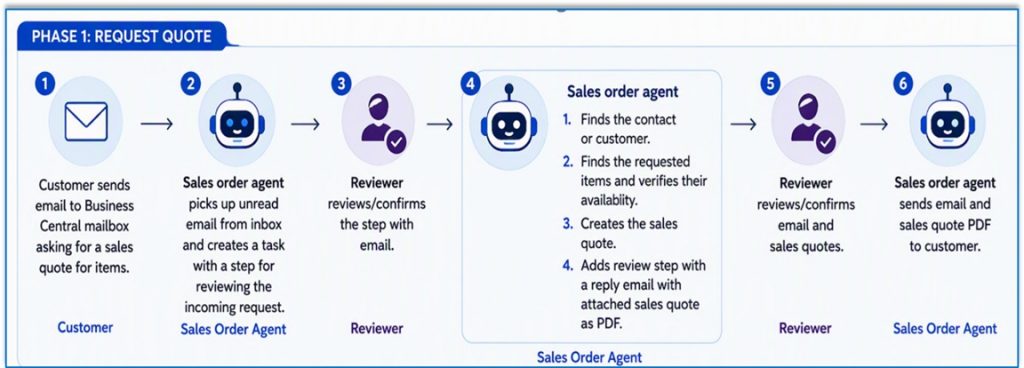
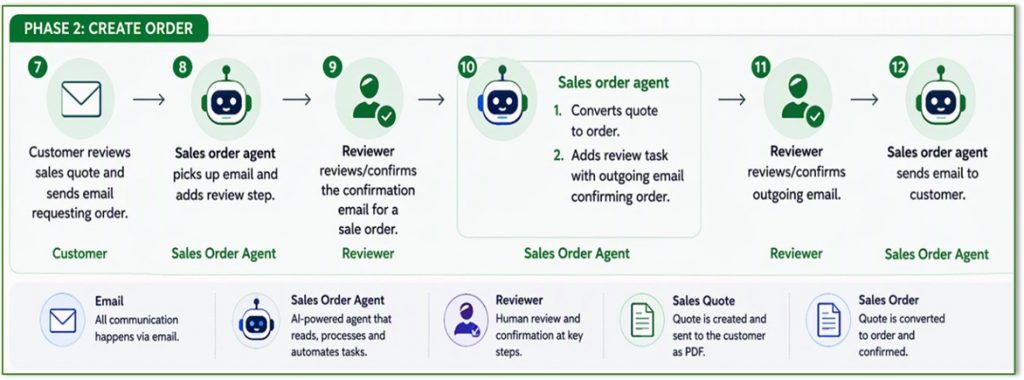
The Agent monitors a shared mailbox and turns incoming customer emails into the sales quotes and then converts the sales quotes into the sales order.
Here’s what that looks like in practice:
- A customer emails in a request, often written casually: “Can I get 20 of the blue folding chairs and 5 of the round tables?”
- The agent reads the email, matches the sender to the correct customer record, and interprets the request-even when the product names are vague or don’t match your item description exactly.
- It checks the real-time inventory availability of the requested items.
- It builds the complete quote: pricing, delivery dates, and all.
- It drafts a professional email reply with a pdf quote attached.
- Before anything goes out, it routes the whole thing to humans for review and approval.
- After approval, the agent can convert the quote into the order.
Prerequisites for Sales Order Agent:
- Business Central has the Sales Order Agent capability enabled.
- A Microsoft 365 mailbox (user or shared mailbox) is configured for receiving customer orders.
- The user configuring the agent has appropriate permissions.
- Full Access and Send As permissions are granted on the mailbox used by the agent.
- Copilot billing and agent consumption settings are configured for the environment.
- Customer contact records contain valid email addresses for accurate customer identification.
Sales Order Agent Configuration
Configure a dedicated Microsoft 365 mailbox, define how the agent should process incoming customer requests, and assign authorized users to manage and monitor its activities. Once activated, the AI-powered agent automatically analyzes customer order emails, validates customer and item details, checks inventory availability, and creates sales quotes or sales orders based on your configured preferences.
Step 1: Enable the Sales Order Agent Capability
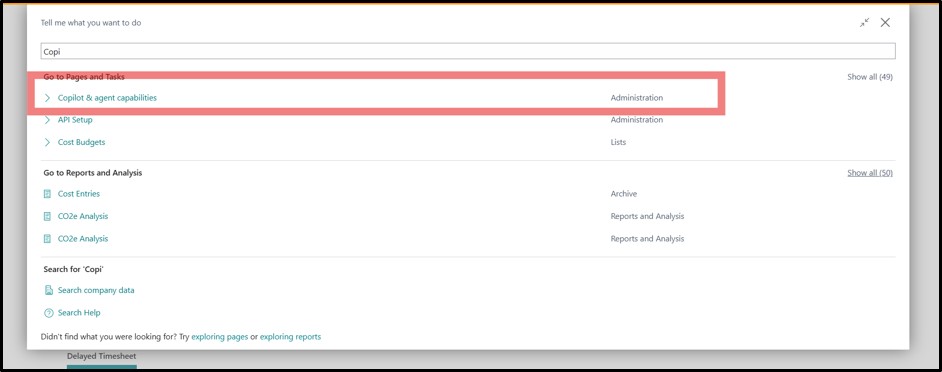
- Open Business Central and Search for Copilot Agent & Capabilities
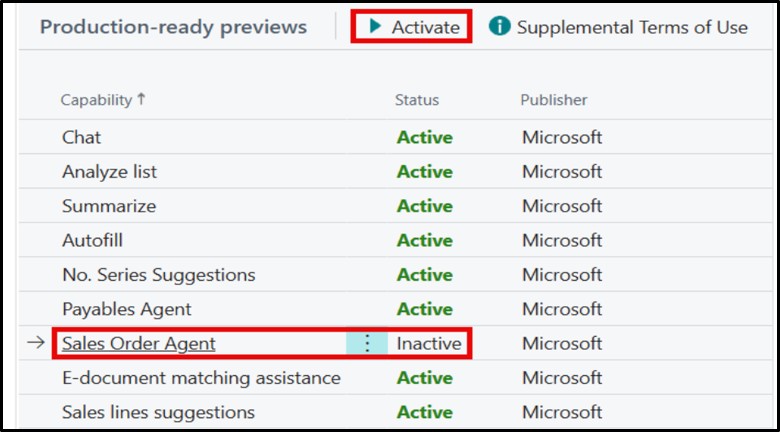
Step 2: Locate the Sales Order within the “Production-Ready Previews” pane.
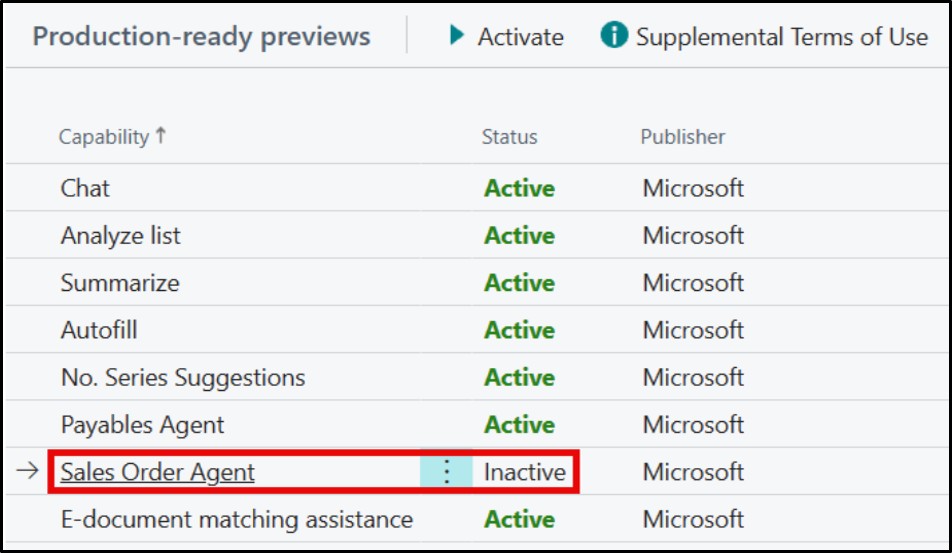
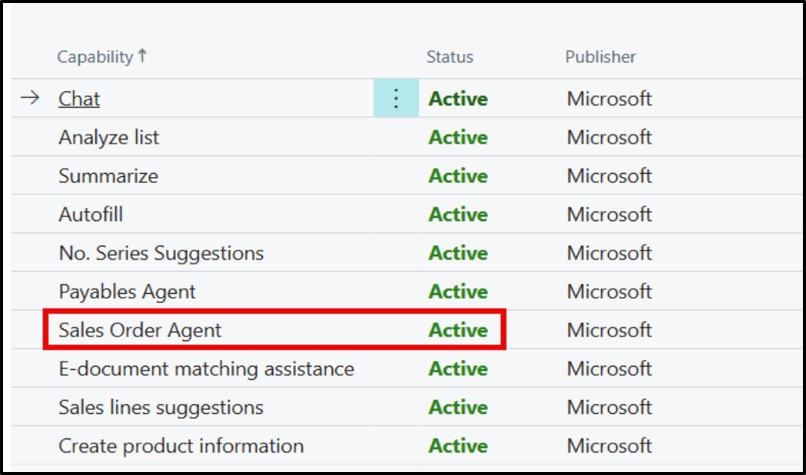
- Select Sales Order Agent and click Activate. You will see the Status Change from Inactive to Active.
⬇︎
Step 3: Activate the Agent
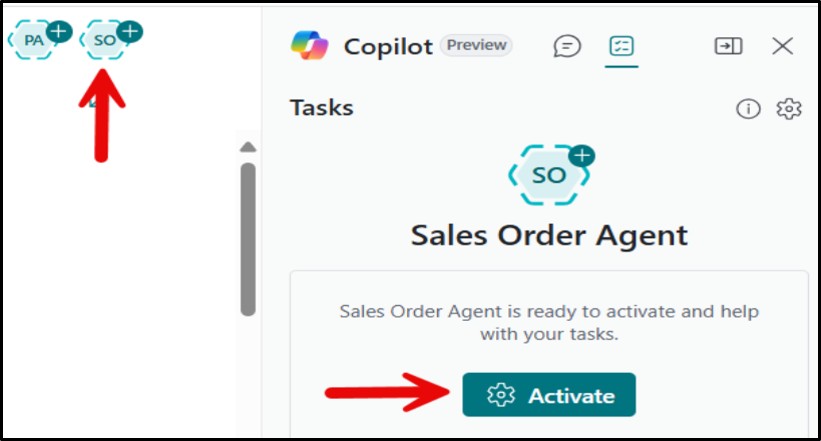
- Click on the Sales Order Agent icon in the top-right corner of the Role Center window to launch the agent’s configuration window.
- Click Activate. The Sales Order Agent icon will change from a dashed border to a solid border, to indicate the agent is now completely activated.
Step 4: Setup Mailbox Monitoring
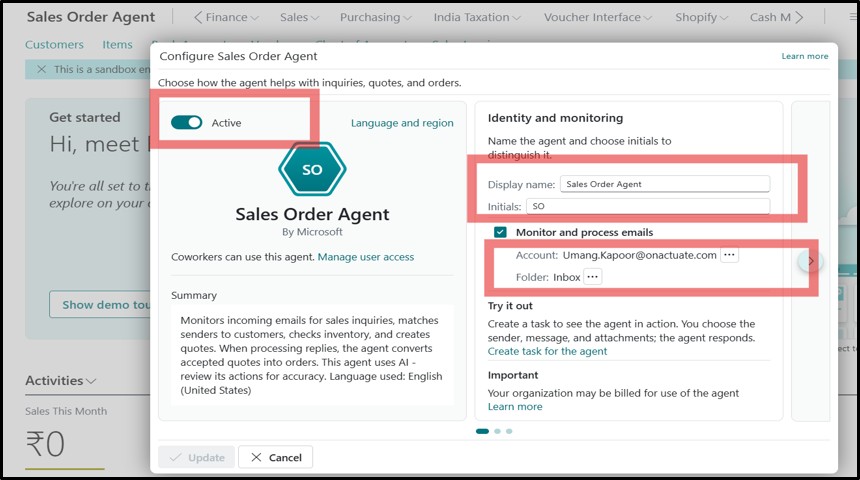
- Set the Mailbox field to the email account you want the agent to monitor.
Step 5: Configure how the agent responds to inquiries
- When the Sales Order Agent receives a new email, it can query your contact table to determine if the sender is already registered in your system. Once the sender’s status is determined (registered or unregistered), the agent will use the configuration setting for that type of sender to determine its subsequent actions.
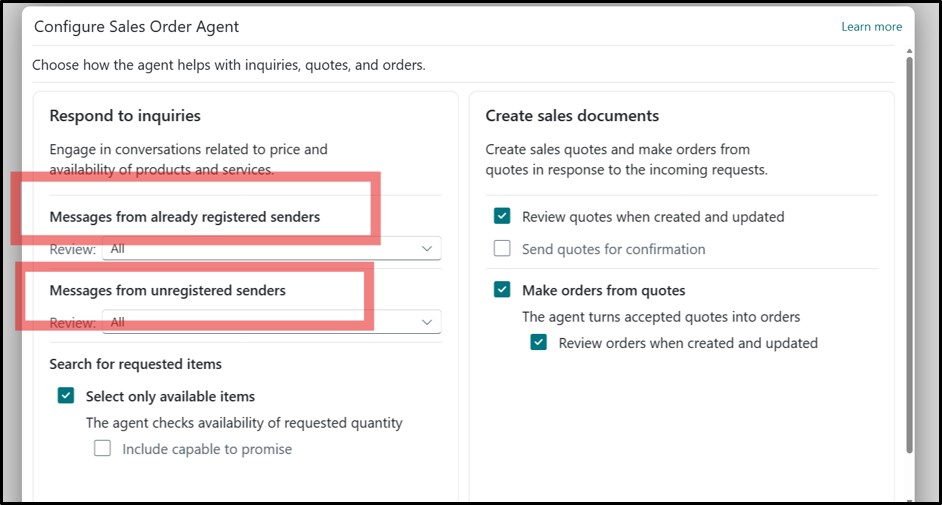
Step 6: Configure Sender Settings for Message Reviews
- Select the appropriate configuration setting that aligns with your process. There are three options for both types of senders.
- All: The agent prompts the Business Central user to review all request emails before generating a quote and reply to email.
- First Message in the Conversation: The agent only prompts the BC user to review the first message in a new conversation thread.
- No Review (advanced): The agent does not prompt the BC user to review the quote before drafting the reply email with the quote attached.
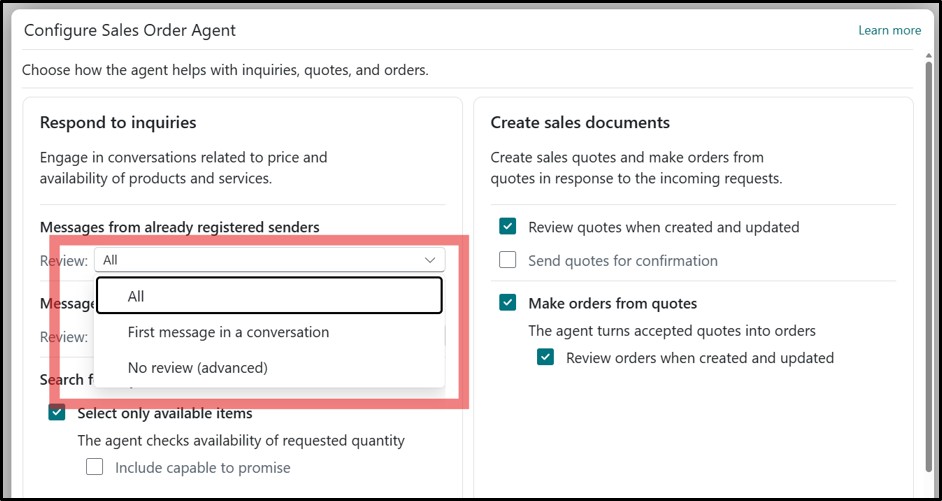
Step 7: Configure how the agent uses item availability in requests
- The Sales Order Agent can query the item table to determine the availability of the item.
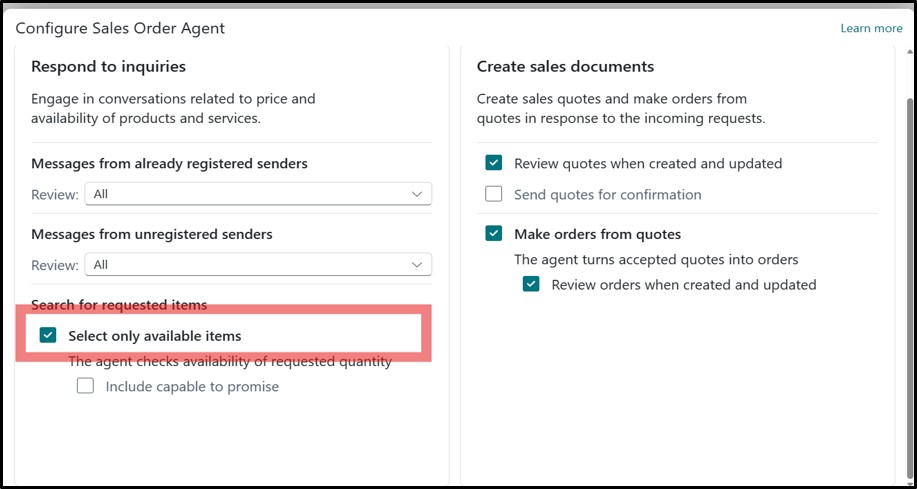
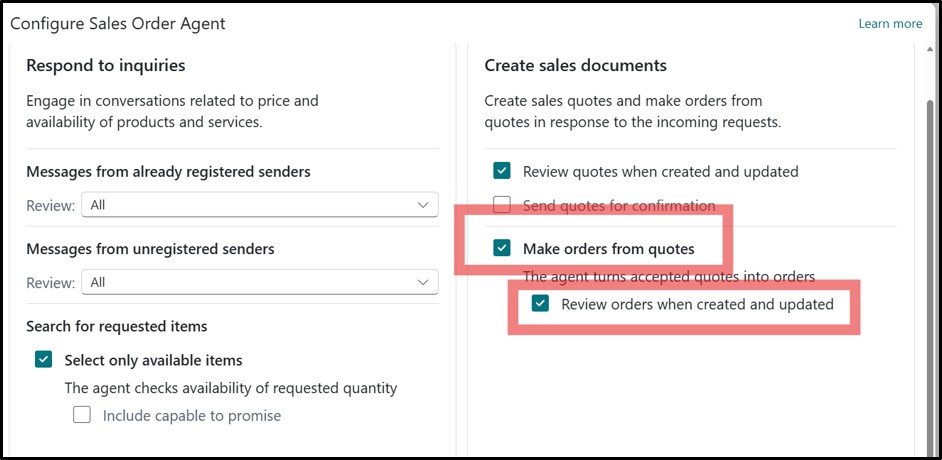
Step 8: Configure how the agent handles approved sales quotes and converts them into a sales order.
If the user wants the agent to convert accepted sales into sales order automatically, check the box for “Make orders from Quotes” and if user wants the agent to add review steps, check the box for “Review orders when created and updated”.
Why does the Sales Order Agent matter?
- Automated Order Processing: Automatically captures sales requests from customer emails and converts them into sales quotes or sales orders with minimal manual intervention.
- Increased Productivity: Reduces repetitive data entry tasks, allowing sales teams to focus on customer engagement and revenue-generating activities.
- Improved Accuracy: Minimizes human errors by extracting and validating customer, item, quantity, and delivery information directly from emails.
- Faster Customer Response Times: Processes incoming requests in real time, enabling quicker quote generation and order confirmation.
- Intelligent Customer Communication: Engages customers automatically when additional information or clarification is needed, improving service quality.
- Inventory Visibility: Checks item availability before creating sales documents, helping prevent order fulfillment issues.
- Enhanced Customer Experience: Delivers faster, more consistent, and professional responses, leading to improved customer satisfaction.
How Much Does the Sales Order Agent Cost?
The Sales Order Agent in Dynamics 365 Business Central is available as a Copilot-powered capability and uses Copilot Credits under Microsoft’s consumption-based billing model. Organizations are charged based on the agent’s usage rather than through a separate fixed user license.
| Agent Action | Copilot Credits |
|---|---|
| Analyze incoming emails | 2 credits |
| Check item availability | 5 credits |
| Create or update quotes/orders | 5 credits |
| Generate response email | 2 credits |
By implementing the Sales Order Agent in Dynamics 365 Business Central, businesses can automate order processing, reduce manual data entry, and improve order accuracy. If you have any questions on this set up process, please visit Microsoft Learn or contact us.
Click here for part 2 – a step-by-step guide on how to actually use the Sales Order Agent once you have set it up.
About the expert
 |
Umang Kapoor, Microsoft Dynamics 365 Business Central Associate Functional Consultant, OnActuate
Umang has many years of experience implementing and supporting Business Central. She specializes in streamlining financials and supply chain, using Business Central to deliver scalable business solutions. |
The “OneByte” blog series are technical how-to articles by OnActuate’s expert consultants covering Microsoft Business Applications (Microsoft Dynamics, Power Platform), Data and AI, and Dayforce. Have a topic you’d like to learn more about? Email us at info@onactuate.com!