

Archiving General ledger Data in Dynamics 365 Finance & Operations Using Dataverse Long-Term Retention
As organizations grow, transaction data in Dynamics 365 Finance & Operations (D365FO) increases significantly. Over time, this large volume of historical data can impact system performance and increase storage costs.
To address this challenge, Microsoft provides Archive with Dataverse Long-Term Retention, a feature that enables organizations to move historical data from D365FO to Dataverse for long-term storage while keeping the system optimized and performant.
In this blog, we’ll walk through the complete process of archiving General Ledger transactions using Dataverse Long-Term Retention.
Why Use Dataverse Long-Term Retention?
Archiving with Dataverse:
- Moves historical data from D365FO to Dataverse
- Improves system performance
- Reduces SQL database size
- Helps manage storage costs efficiently
- Maintains compliance and audit readiness
Currently, archiving is supported for modules such as:
- Dynamics 365 Finance General ledger
- Dynamics 365 Finance Tax transactions
- Dynamics 365 Supply Chain Management Inventory transactions
- Dynamics 365 Supply Chain Management Inventory journals
- Dynamics 365 Supply Chain Management Sales orders
This article focuses specifically on General Ledger archiving.
Step 1: Extend Required Tables and Data Entities
If you have custom fields added in your model (e.g., TAS Model), you must ensure they are included in the corresponding history tables and data entities.
For example:
Custom fields added on:
- GeneralJournalEntry table
-
- OA_OrigPaymVouch
These same fields must also be added to ensure archived data remains consistent and complete:
- GeneralJournalEntryHistory table
- GeneralJournalEntryBiEntity data entity
This ensures archived data remains consistent and complete.
Step 2: Enable Long-Term Retention in Dataverse
You must enable long-term retention on the required entities in Power Platform.
Navigate to: Power Apps → Solutions → Common Data Services Default Solution
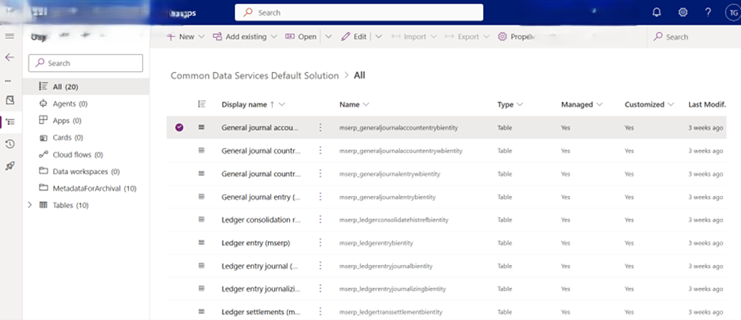
Enable long-term retention for the following entities:
- mserp_GeneralJournalAccountEntryBiEntity
- mserp_GeneralJournalAccountEntrywBiEntity
- mserp_GeneralJournalEntryBiEntity
- mserp_GeneralJournalEntrywBiEntity
- mserp_ledgerconsolidatehistrefbientity
- mserp_ledgerentrybientity
- mserp_ledgerentryjournalizingbientity
- mserp_ledgertranssettlementbientity
- mserp_ledgerentryjournalbientity
- mserp_subledgervouchergeneraljournalentrybientity
Steps to Enable:
- Open Common Data Services Default Solution
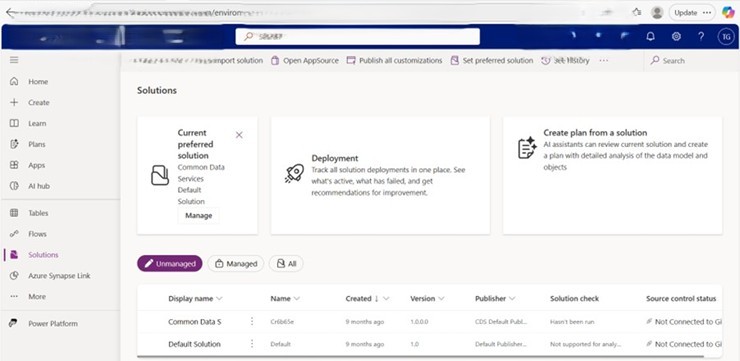
2. Search for the required entity (for example: mserp_GeneralJournalAccountEntryBiEntity)
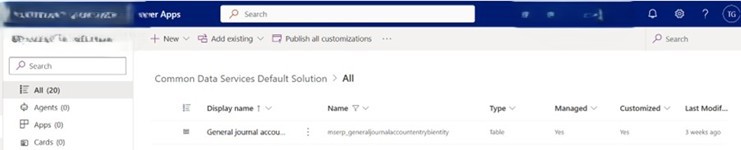
3. Open the entity
4. Click Edit
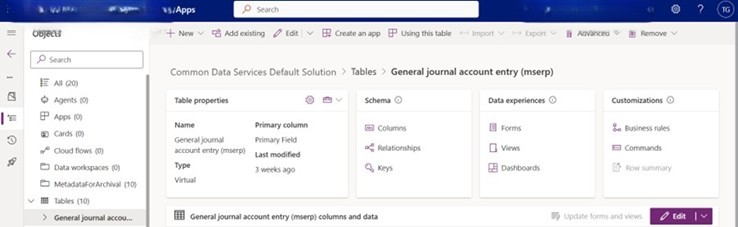
5. Click Edit table properties
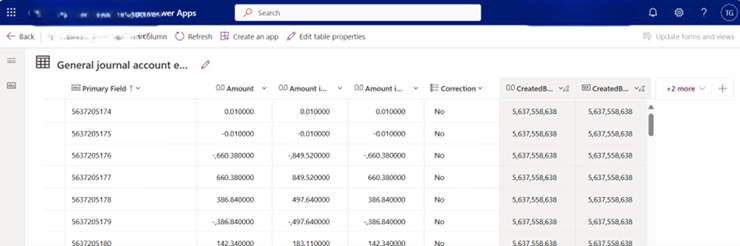
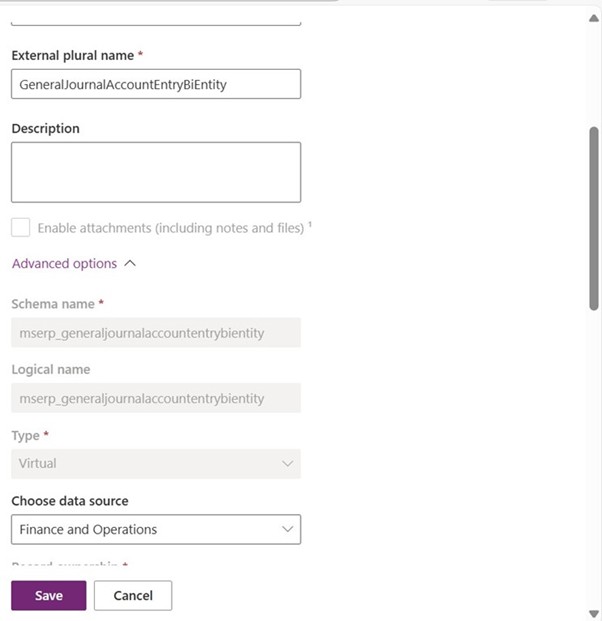
6. Go to Advanced options
7. Enable Long term retention
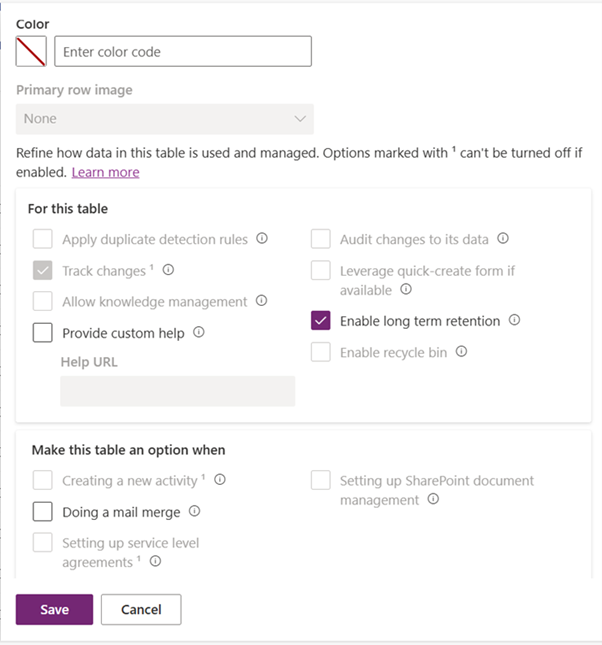
8. Save
Repeat for all required entities.
⚠️ Ensure your Dataverse environment is a Managed Environment.
Step 3: Install Archive with Dataverse Long-Term Retention App
Now install the required solution in the Power Platform Admin Center.
Navigate to: Environments → Select Environment → Resources → Dynamics 365 apps
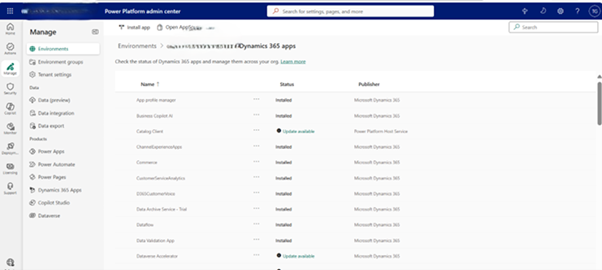
Install Dynamics 365 Archive with Dataverse Long Term Retention.
Click:
- Install App
- Select the archive app
- Accept terms
- Complete installation
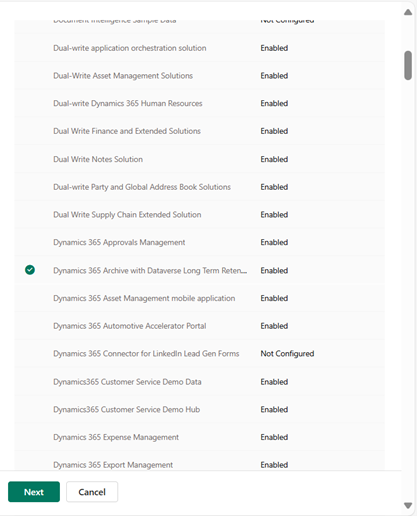
Verify that the solution is installed successfully.
Step 4: Enable Archive Feature in D365FO
Next, enable the feature inside Microsoft Dynamics 365 Finance and Operations.
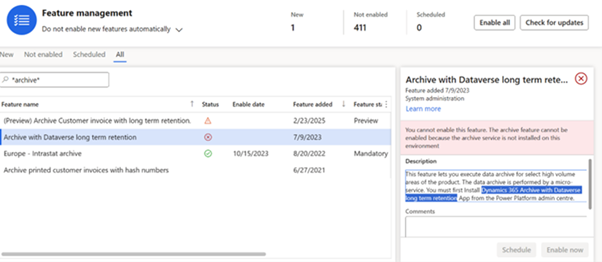
Step 5: Perform Year-End Close
Before archiving General Ledger data, you must complete year-end closing.
Navigate to: General Ledger → Period Close → Year End Close
Steps:
- Choose Legal Entity
- Specify Fiscal Year
- Provide voucher details
- Click OK
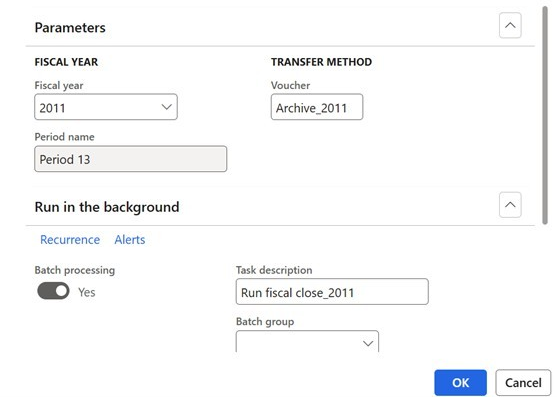
Repeat for all legal entities and fiscal years that need to be archived.
Step 6: Create Long-Term Retention Archive Job
Now create the archival job.
Navigate to: System Administration → Archive with Database Long Term Retention
Steps:
- Click New Long-Term Retention Job
- Select General Ledger as Functional Scenario
- Click Archive
- Provide Job Name (use logical naming: LegalEntity_FiscalYear)
- Click Next
- Click Refresh to load eligible fiscal years
- Select Fiscal Year and Legal Entity
- Click Next
- Specify Start Date & Time
- Click Finish
A new archival job will be created.
Repeat for all fiscal years and legal entities.
Step 7: Post-Archival Activities
Once all archival jobs complete:
- Generate BACPAC from LCS
Generate a BACPAC file from Lifecycle Services (LCS) for backup and compliance purposes.
- Truncate Historical Tables (SQL Level)
To reduce Db size in Test environment- After confirming successful archival and backup, truncate the following history tables from SQL:
- LEDGERENTRYHistory
- GENERALJOURNALACCOUNTENTRYHistory_W
- GENERALJOURNALENTRYHistory_W
- LEDGERTRANSSETTLEMENTHistory
- LEDGERENTRYJOURNALIZINGHistory
- LEDGERENTRYJOURNALHistory
- SUBLEDGERVOUCHERGENERALJOURNALENTRYHistory
- GENERALJOURNALACCOUNTENTRYHistory
- GENERALJOURNALENTRYHistory
Use:
TRUNCATE TABLE <TableName>
⚠️ Perform this step only after:
- Archival job success confirmation
- Backup (BACPAC) completed
- Business sign-off received
Best Practices
- Always test in UAT before Production
- Validate custom fields are included in history entities
- Archive legal entity-wise and fiscal year-wise
- Maintain documentation for audit
- Monitor Dataverse storage consumption
Archiving with Dataverse Long-Term Retention is a powerful capability that helps organizations maintain optimal D365FO performance while preserving historical financial data securely.
By following a structured approach — enabling entities, installing the archive solution, closing fiscal years, running archive jobs, and cleaning up SQL tables — organizations can efficiently manage growing transaction volumes without compromising system performance or compliance.
If you have any further questions on this process, please contact us.
About the expert
 |
Tanuj Goel, D365 F&SC Technical Capability Lead, OnActuate
Tanuj is a Microsoft Dynamics 365 Finance & Supply Chain professional with more than 20 years of experience in development, upgrades, integrations, DevOps, LCS tools and deployment in Dynamics AX and D365 F&SC. He is also experienced with performance testing using JMeter and test automation tools like RSAT and Leapwork. |
The “OneByte” blog series are technical how-to articles by OnActuate’s expert consultants covering Microsoft Business Applications (Microsoft Dynamics, Power Platform), Data and AI, and Dayforce. Have a topic you’d like to learn more about? Email us at info@onactuate.com!